

Merge in three steps
- 1
Open Merge PDFs and choose at least two PDFs. Use Add PDFs or the + button to add another file.
- 2
Arrange the numbered file cards in output order. Hold and drag a card on your phone; use its grip or keyboard on desktop. Open Edit pages if you need to inspect or change pages inside a file.
- 3
Press Merge PDFs. Download PDF when processing finishes, then reopen the downloaded file and check its order.
Merge keeps each document together
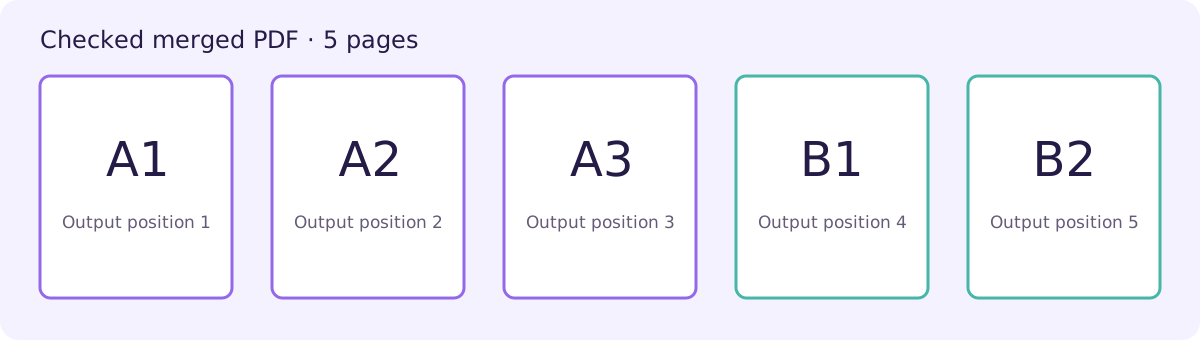
Merging puts the retained pages of the first file before the retained pages of the second. With A1, A2, A3 in PDF A and B1, B2 in PDF B, the result is A1, A2, A3, B1, B2. It does not alternate A and B pages. Use Alternate & Mix PDF when you want A1, B1, A2, B2 instead.
This makes merging useful for a report followed by appendices, a CV followed by certificates, or a set of related receipts. Check the recipient’s required order before uploading the files. A good filename identifies the finished pack, but filenames alone do not prove the contents are correct.
Prepare a clean set of inputs
Keep the originals and open each source before combining it. Check that it is the intended version, contains the expected pages and is readable. Avoid adding both the original and a revised copy unless you deliberately need both.
A merge does not compress the final document to a particular upload limit. First complete the order and content checks. If the recipient sets a file-size limit, inspect the merged size and use Compress PDF separately if necessary. Recheck readability after compression.
Review forms before page copying
The merge engine checks for fillable form fields. If it asks you to make fields read-only before merging, complete the forms first and review their visible values. Use the offered flattening option only when you no longer need editable fields, or fill and flatten the source in its original editor.
A visual appearance is different from an editable field. Keep your editable originals. Do not assume that merging preserves certificates, digital signatures or every interactive feature. For signed documents, ask the recipient whether a combined reading copy is acceptable and retain the separately signed originals.
A five-page worked example
Engine check: 8 October 2026 · Current repository assembly function · Node.js and pdf-lib
PDF A contains A1, A2, A3. PDF B contains B1, B2. We checked the current page-assembly function with these inputs and inspected all five output labels: A1 → A2 → A3 → B1 → B2. This is an engine check, not a fresh live-site or physical-phone test.
Buddy keeps each stack together
Finish PDF A, then continue with PDF B.
Alternating pages is a separate task.
Try arranging two files
Put PDF A before PDF B. This practice uses labels only; it does not process or upload files.
- 1. PDF BB1, B2
- 2. PDF AA1, A2, A3
Check your result
For the reference inputs, expect five pages: A1, A2, A3, B1, B2. For your files, sum the retained page counts and inspect every source boundary.
Merging copies pages; it does not recognize text, pair scanned fronts and backs, reduce file size automatically or preserve a digital signature’s validity.
Practical tips
- Add documents in their intended reading order, then check the numbered cards.
- Inspect the transition between the last page of one source and the first page of the next.
- Use a short trial before merging a large batch on a phone.
- Keep original signed or fillable documents separately.
Questions
Is Merge the same as Alternate & Mix?
No. Merge keeps each document’s pages together. Alternate & Mix takes a page from each file in turn.
Can I merge scans?
Yes, readable scanned PDFs can be combined as pages. Merging does not add OCR or make their text searchable.
Will merging make my PDF smaller?
There is no guaranteed reduction. Use the separate compression tool after checking the merged document.