

Merge in three steps
- 1
Keep your originals. Compare the retained page counts with the output count and identify the first point where the result differs.
- 2
Correct the relevant file order or internal page sequence. For a fillable-form warning, complete and safely flatten the source or use the offered read-only-fields option.
- 3
Merge a short test again, download it and inspect the affected boundary before processing the full pack.
The output begins with the wrong document
Check the first numbered file card. A normal merge starts with that file’s retained pages. Drag the intended first document into position one and review the rest of the sequence. Do not repeatedly press the sort button without checking its resulting order.
If you need every front page followed by its corresponding back, the issue may be tool choice rather than a broken merge. Use Alternate & Mix PDF for that sequence after preparing both source stacks. Merge intentionally keeps whole documents together.
A page is missing, repeated or unexpected
First compare the output total with the sum of the retained page counts. If you removed pages in Edit pages, use those retained counts rather than the original totals. A correct total does not prove the sequence is correct: a duplicate can replace a missing page without changing the count.
Open the original source and check whether the page was present there. Look for duplicate file cards, different versions and an accidental page removal. A merge cannot recreate content absent from the inputs. Correct the source set and try a short labelled sample before rerunning the entire batch.
The tool reports fillable fields
This is a safety check, not a reason to keep trying the same settings. The engine avoids blindly copying interactive form pages. Complete the form and check all visible values before choosing the option to make its fields read-only or flattening it in the original form editor.
If safe flattening still fails, preserve the original and use its form editor to save a completed reading copy. Verify that copy before merging. Do not accept a result with missing field values just because the surrounding page text looks normal.
The file will not open or processing stops
Try opening each input separately in a trusted reader. A password-protected document may need unlocking with a password you know before the merge can read it. A file with a .pdf name is not necessarily a readable PDF, and a severely damaged source may not be recoverable.
On a phone, try fewer or shorter inputs if processing stops on a large pack. File bytes are only part of the memory cost. Keep the tab open while the action runs and retain the originals. Record the exact error text and the input counts when reporting a problem; leave private contents and passwords out of a public report.
The result is larger or signatures look different
Merge is a page-combination task, not a size-targeting task. A larger output does not by itself prove failure. Inspect its content first, then use compression if the recipient has a size limit and review the compressed copy separately.
A merged reading copy is a new document. An original digital signature should not be treated as a valid certificate for that new combined file. Keep the signed originals and follow the recipient’s requirements. Visible signature artwork alone is not proof of cryptographic validity.
A five-page worked example
Engine check: 8 October 2026 · Current repository assembly function · Node.js and pdf-lib
PDF A contains A1, A2, A3. PDF B contains B1, B2. We checked the current page-assembly function with these inputs and inspected all five output labels: A1 → A2 → A3 → B1 → B2. This is an engine check, not a fresh live-site or physical-phone test.
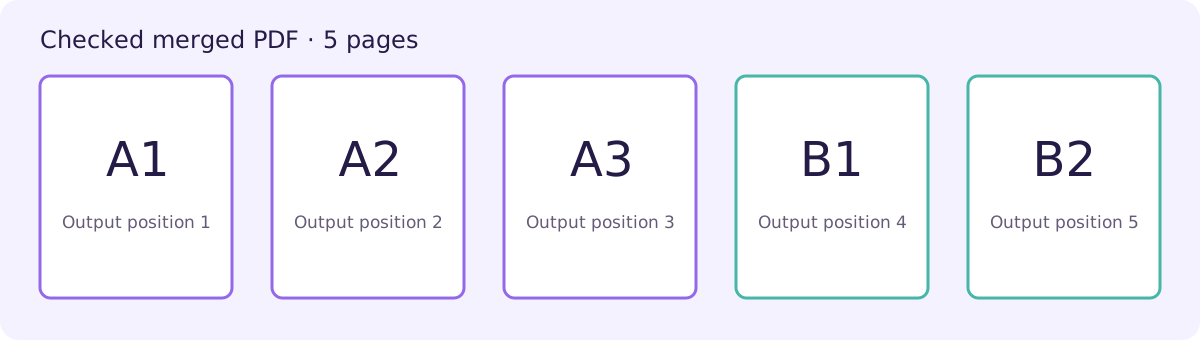
Buddy keeps each stack together
Finish PDF A, then continue with PDF B.
Alternating pages is a separate task.
Try arranging two files
Put PDF A before PDF B. This practice uses labels only; it does not process or upload files.
- 1. PDF BB1, B2
- 2. PDF AA1, A2, A3
Check your result
Check the actual downloaded file, not only the workspace. Compare count, sequence, form values and readability independently.
The reference engine check covers simple labelled PDFs. It does not certify every form, encrypted file, signed document, large batch or physical phone.
Practical tips
- Record the exact error before changing settings.
- Check source boundaries as well as the page count.
- Use the reference PDFs to distinguish ordinary merge order from alternation.
- Do not post private PDFs or passwords in a public issue.
Questions
Does the right count prove the merge is correct?
No. Check the sequence and content too; duplicates and wrong versions can have the same total.
Why is a form-flattening choice required?
The engine checks for interactive fields before copying pages so it can avoid silently losing their visible values.
Can the repair tool recover every broken PDF?
No. Repair readable PDF can resave documents that parse successfully; severe damage may prevent recovery.