

Split PDF: common problems and how to fix them
Resolve the wrong pages are extracted and the download is a zip rather than a pdf. Understand the limits before retrying.
Open Split PDF →Follow these steps
- Open the source PDF and review its page thumbnails.
- Enter the required pages or ranges, for example 1, 3–5. Use the displayed page count to check your selection.
- Export the selected pages, reopen the result and confirm that it contains only the pages you need.
The wrong pages are extracted
Count from the first physical PDF page, including covers. Compare thumbnail positions before repeating the action.
The download is a ZIP rather than a PDF
A separate-page or grouped output mode creates an archive. Extract it and open the PDFs inside, or choose one-PDF output.
Check whether this is the right operation
Split selects actual positions in the current PDF. Printed labels such as invoice numbers or Roman page numbers are not the range values.
A more useful retry
For a single invoice, confirm whether supporting pages belong to that invoice before choosing a range. Printed numbering can restart inside a source; use PDF positions rather than the number in its footer.
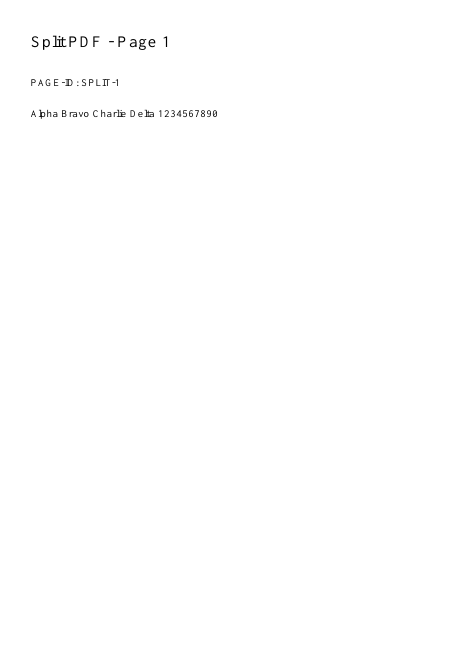
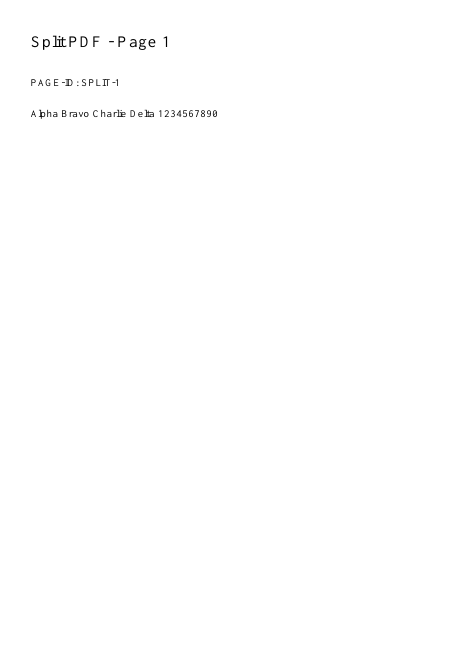
A checked example you can try
Only positions one and three remain.
Settings used in this engine check
- range
- 1,3
- quality
- compact
- angle
- 90
- margin
- 20
- start
- 1
- columns
- 2
Check the result
Page numbers refer to positions in the file, which may differ from numbers printed on the pages. Extracting pages does not redact sensitive content within a retained page.
Keep the original. When this task produces a file, reopen the download in the application where you will use it and inspect the affected pages. An illustration explains the operation; it is not a recorded processing test.
Practical tips
- Choose the output mode deliberately: one PDF, a PDF for each selected page, or semicolon-separated groups in a ZIP. Keep grouping separate from page-selection syntax.
- Count from the first physical PDF page, including covers. Compare thumbnail positions before repeating the action.
- A separate-page or grouped output mode creates an archive. Extract it and open the PDFs inside, or choose one-PDF output.
Questions
The wrong pages are extracted?
Count from the first physical PDF page, including covers. Compare thumbnail positions before repeating the action.
The download is a ZIP rather than a PDF?
A separate-page or grouped output mode creates an archive. Extract it and open the PDFs inside, or choose one-PDF output.
Will the original PDF change?
No. Export creates a separate result. Keep your original as a backup.
Can I remove sensitive text this way?
Only whole excluded pages are omitted. Use Redact for sensitive regions on pages you retain.