

How to divide a PDF spread into two pages
Separate left and right halves of each page. Learn the available controls, a practical example and what to check.
Open Split pages in half →Follow these steps
- Choose the supported source file or files from your device.
- Open the PDF and inspect whether the content is arranged in left and right halves.
- Export two halves per source page and check their reading order.
What this tool actually does
The split uses page geometry rather than recognizing a book gutter. It creates two visible crops per source page; outside content is hidden by boundaries, not securely removed.
Choose the controls for your document
Check rotation and CropBox before choosing this operation. For uneven halves, a separate crop may be more suitable than assuming the centre of the PDF is the book gutter.
Before your first export
For a scanned open book, check both the left and right halves of the first spread. A centre gutter can conceal text; dividing the page does not recover words missing from the photograph.
Words are cut at the centre
The source halves may be unequal or the scan may be tilted. Correct the scan first or use a deliberate crop instead of accepting clipped text.
A checked example you can try
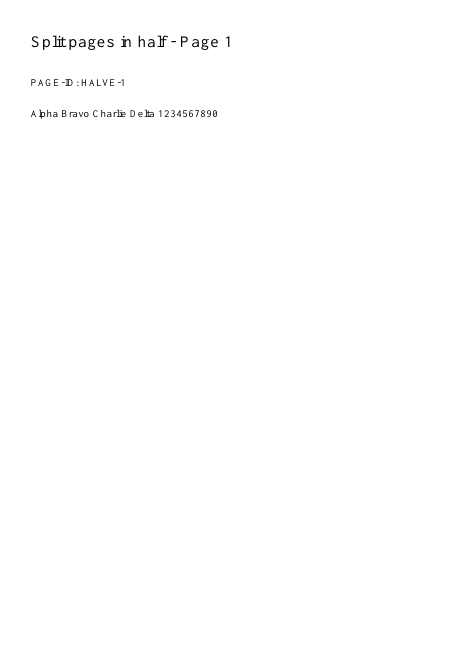
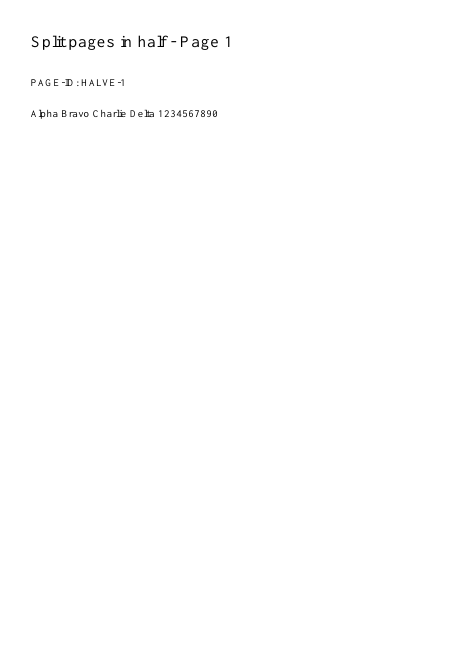
Six inputs become twelve half-page views.
Settings used in this engine check
- quality
- compact
- angle
- 90
- margin
- 20
- start
- 1
- columns
- 2
Check the result
Cropping hides content outside boundaries; it is not secure removal.
Keep the original. When this task produces a file, reopen the download in the application where you will use it and inspect the affected pages. An illustration explains the operation; it is not a recorded processing test.
Practical tips
- Check rotation and CropBox before choosing this operation. For uneven halves, a separate crop may be more suitable than assuming the centre of the PDF is the book gutter.
- The source halves may be unequal or the scan may be tilted. Correct the scan first or use a deliberate crop instead of accepting clipped text.
- Inspect source orientation and the first pair. Rotate the source appropriately and repeat a short trial before splitting a long book scan.
Questions
Words are cut at the centre?
The source halves may be unequal or the scan may be tilted. Correct the scan first or use a deliberate crop instead of accepting clipped text.
The halves appear in an unexpected order?
Inspect source orientation and the first pair. Rotate the source appropriately and repeat a short trial before splitting a long book scan.
What is this tool useful for?
Separate side-by-side scans for easier reading.
What should I check in the result?
Cropping hides content outside boundaries; it is not secure removal.