

Start with the right sequence
Interleave means weaving pages from separate PDFs together, one page from each file in turn. Alternate & Mix PDF uses the order of your input files and their pages.
- 1
Keep the original files. Compare their first pages and write down the intended output sequence before changing the workspace.
- 2
Fix the source problem: add the correct first file, reverse a backwards stack, or restore a missing page position.
- 3
Run a small mix again. Open Preview PDF and the downloaded PDF, then check the first, middle and final pairs.
The output starts with the wrong document
If you wanted A1 first but received B1 first, check which file was added first. The first source supplies the first output page. Page thumbnails can make a workspace look correct while the source-file order is still wrong; moving one page is not a reliable way to change which file starts every pair.
Keep your inputs, use Clear workspace and confirm the clear action. Choose the intended first PDF with Choose files, then add the next PDF with Add PDFs. For a short trial, label the first pages A1 and B1 so you can tell which document started the output.
Front pages are paired with the wrong backs
A common scan problem is a back file in reverse order. With fronts F1, F2, F3 and backs B3, B2, B1, the output begins F1, B3. The tool has alternated correctly, but the source order is unsuitable. Open each input by itself to check this before repeating the same mix.
Reverse the back PDF alone using Reverse pages, download the corrected file and add that copy second. If only one back is in the wrong position, inspect the original scan and correct that source sequence. Reversing the entire document is appropriate only when the whole back stack runs backwards.
A page seems missing or appears at the end
Unequal lengths do not require the tool to discard anything. The previously verified three-page A and two-page B example ends with A3, after A1, B1, A2, B2. That final unpaired page is expected. Count all input pages and compare the sum with the output before concluding that a page is missing.
If a page is absent from the input, mixing cannot recreate it. If a blank back was removed before mixing, subsequent pairs may shift. Check original files, page labels and scan settings. Restore missing positions where necessary and rerun a short test. Never insert a guess where a document page should be.
The order is right but a page is sideways
Fix orientation separately from sequence. A 90° turn does not move a page earlier or later. Use Rotate PDF or a supported individual-page rotation control, then verify the resulting orientation in the downloaded file.
If your document contains both portrait and landscape pages, avoid rotating every page blindly. Read the labels and turn only the pages that need it. Keep the content and ordering checks separate so a successful orientation fix does not hide an unresolved pairing problem.
The result differs from what you expected
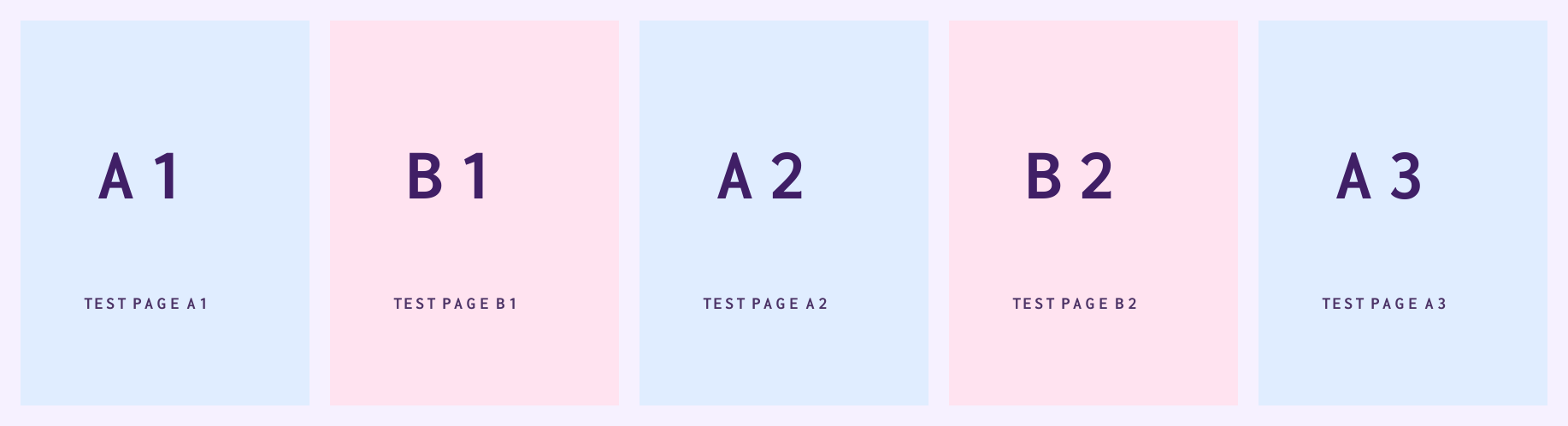
Try the two reference PDFs below to separate a source problem from an unfamiliar workflow. Their previously checked result is A1, B1, A2, B2, A3. If your own files behave differently, record their counts, first pages and intended sequence. That information is more useful than a screenshot of an error without the input order.
A completed action means a file was produced, not that every recipient requirement has been met. Reopen the actual downloaded PDF, confirm that all pages can be read, and review the end of the document. If processing stops with a form or password message, follow the message and preserve the original files rather than repeatedly changing page order.
Check your result
A3 plus B2 should contain five pages in the sequence A1, B1, A2, B2, A3. Compare both the count and the labels; one correct check does not replace the other.
The tool alternates sources mechanically. It does not infer matching pages or prove that two scans represent the same document.
A real five-page test
Tested Browser: Chrome (cloud desktop)
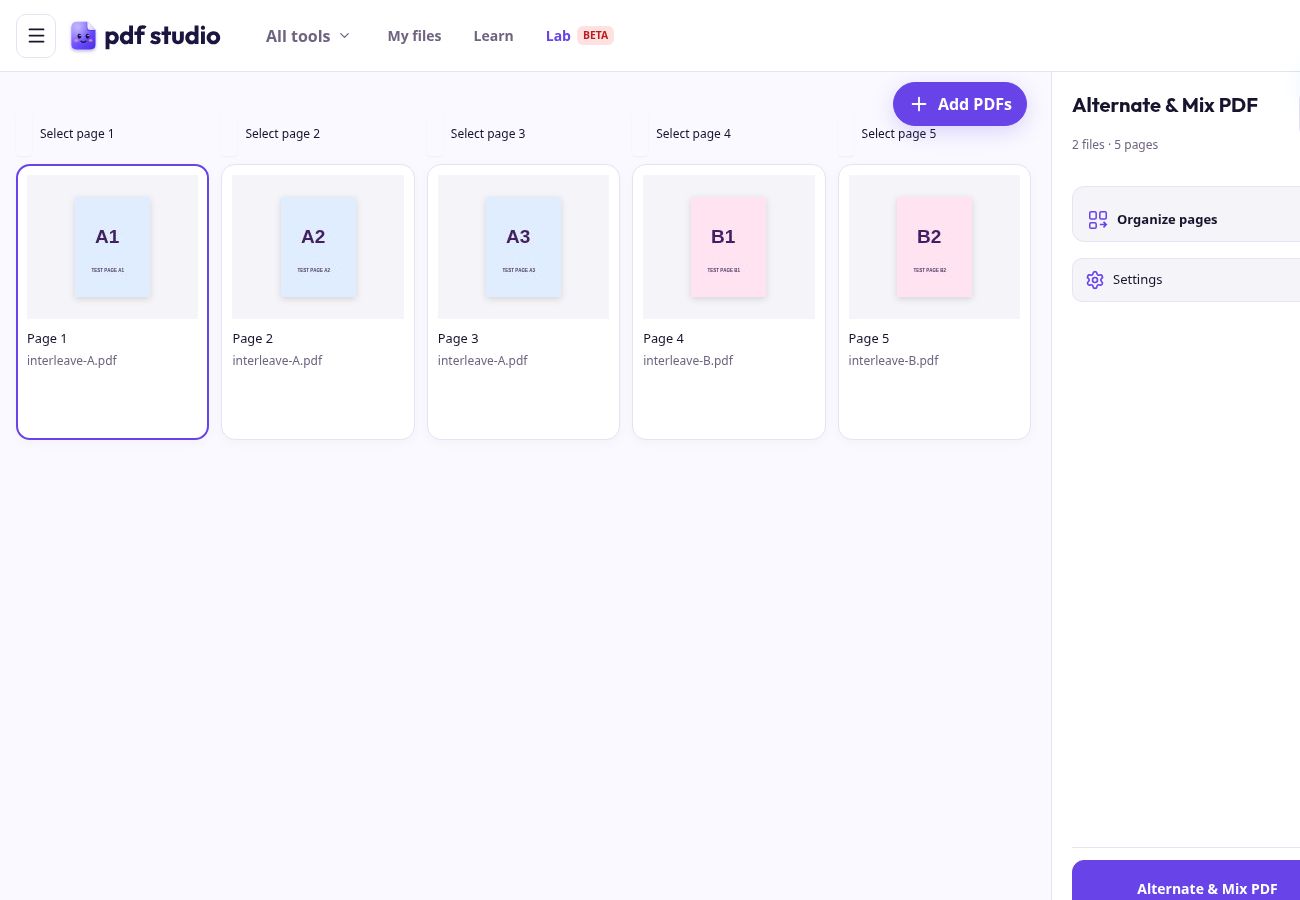
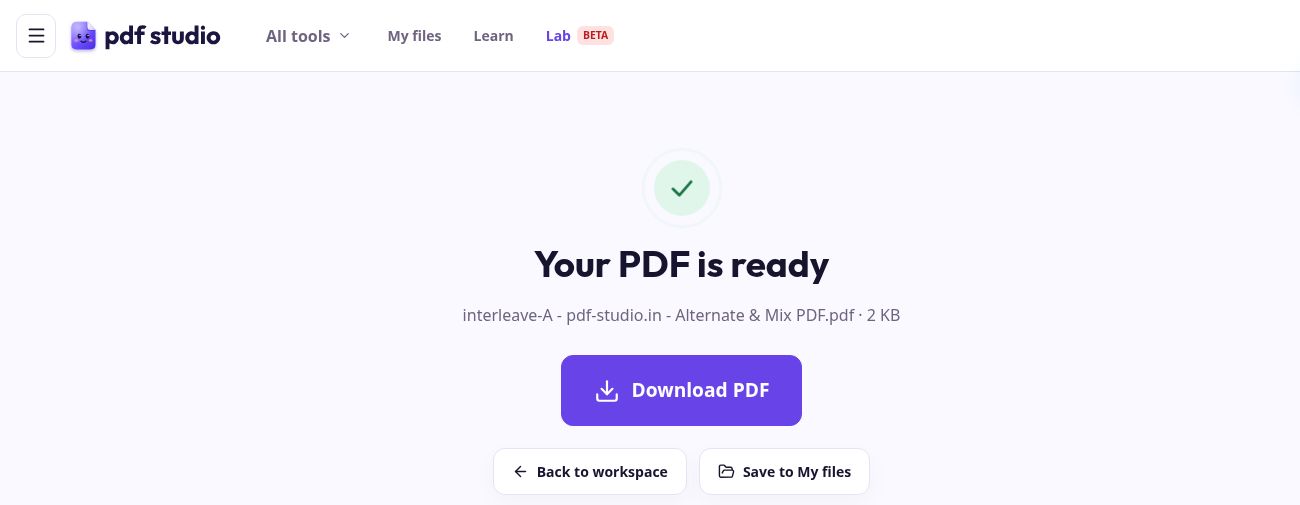
In the reference processing run on 7 October, we uploaded a three-page PDF labelled A1, A2, A3 and a two-page PDF labelled B1, B2. The live tool’s downloaded PDF contained A1 → B1 → A2 → B2 → A3. These captures verify basic two-file alternation. They do not verify a new front/back scanning or reversal workflow.
Open Alternate & Mix PDF — try it →
Watch the pages alternate
Try it yourself: arrange five sample pages
Can you make the alternating sequence?
This is a practice puzzle with sample cards. It does not upload, change or create a PDF.
Drag a card to its new position. On phones, tap a card, then tap its destination. With a keyboard, focus a card and use ← or →.
- 1
- 2
- 3
- 4
- 5
Buddy’s four-step story
Start with PDF A and PDF B. Keep each document’s pages in the order you want.
Put PDF A first if its first page should start the combined document.
Take A1, then B1, then A2, then B2, then A3. Continue with one page from each PDF.
Keep remaining pages at the end. Review the sequence and download your result.
Start with PDF A and PDF B. Keep each document’s pages in the order you want.
Practical tips
- Use the reference PDFs to understand the normal output before investigating a large scan.
- Compare page count and page sequence independently.
- Start again with explicit file order when the wrong source goes first.
- Keep filenames, private document contents and passwords out of public problem reports.
Questions
Why is the last page not paired?
One input may be longer. Available pages continue at the end; the verified A3/B2 example keeps A3 as the fifth page.
Can the tool match front and back content?
No. It uses the order of the source files and their pages. You must check that corresponding positions belong together.
Why does Merge PDFs look different?
Merge keeps whole documents together. Alternate & Mix PDF takes one page from each source in turn.
Does a correct page count prove the result is correct?
No. The same count can contain wrong pairs or reversed order. Inspect labels and content as well.