

Mix your pages in three steps
- 1
Choose the first PDF
Open Alternate & Mix PDF. Click Choose files and open only the document whose first page should come first.
- 2
Add the second PDF
Click Add PDFs and choose the second document. Adding files one at a time makes the input order explicit.
- 3
Mix, review, and download
Click Alternate & Mix PDF. On Your PDF is ready, open Preview PDF to check the sequence, then click Download PDF.
What does alternate and mix mean?
A normal merge keeps each document together: A1, A2, A3, B1, B2. Alternate and mix takes one page from each document in turn:
When one PDF runs out, the remaining pages continue at the end. In this example, three A pages plus two B pages give five output pages.
Buddy has two stacks. Which page comes next?
Start with PDF A and PDF B. Keep each document’s pages in the order you want.
Put PDF A first if its first page should start the combined document.
Take A1, then B1, then A2, then B2, then A3. Continue with one page from each PDF.
Keep remaining pages at the end. Review the sequence and download your result.
Start with PDF A and PDF B. Keep each document’s pages in the order you want.
A real five-page test
We uploaded a three-page PDF labelled A1, A2, A3 and a two-page PDF labelled B1, B2. The live tool’s downloaded PDF contained A1 → B1 → A2 → B2 → A3. These are captures from that test, not illustrations.
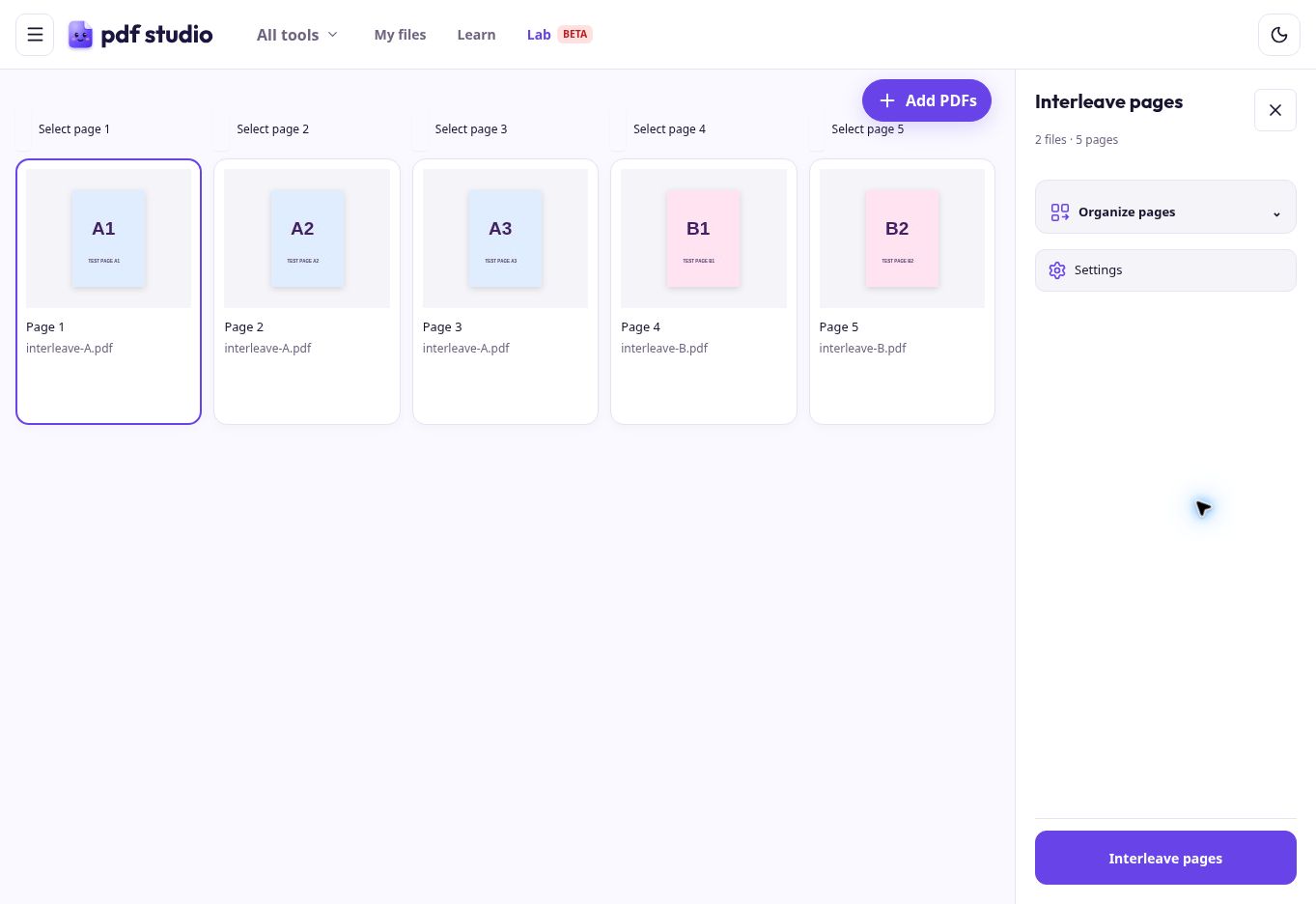
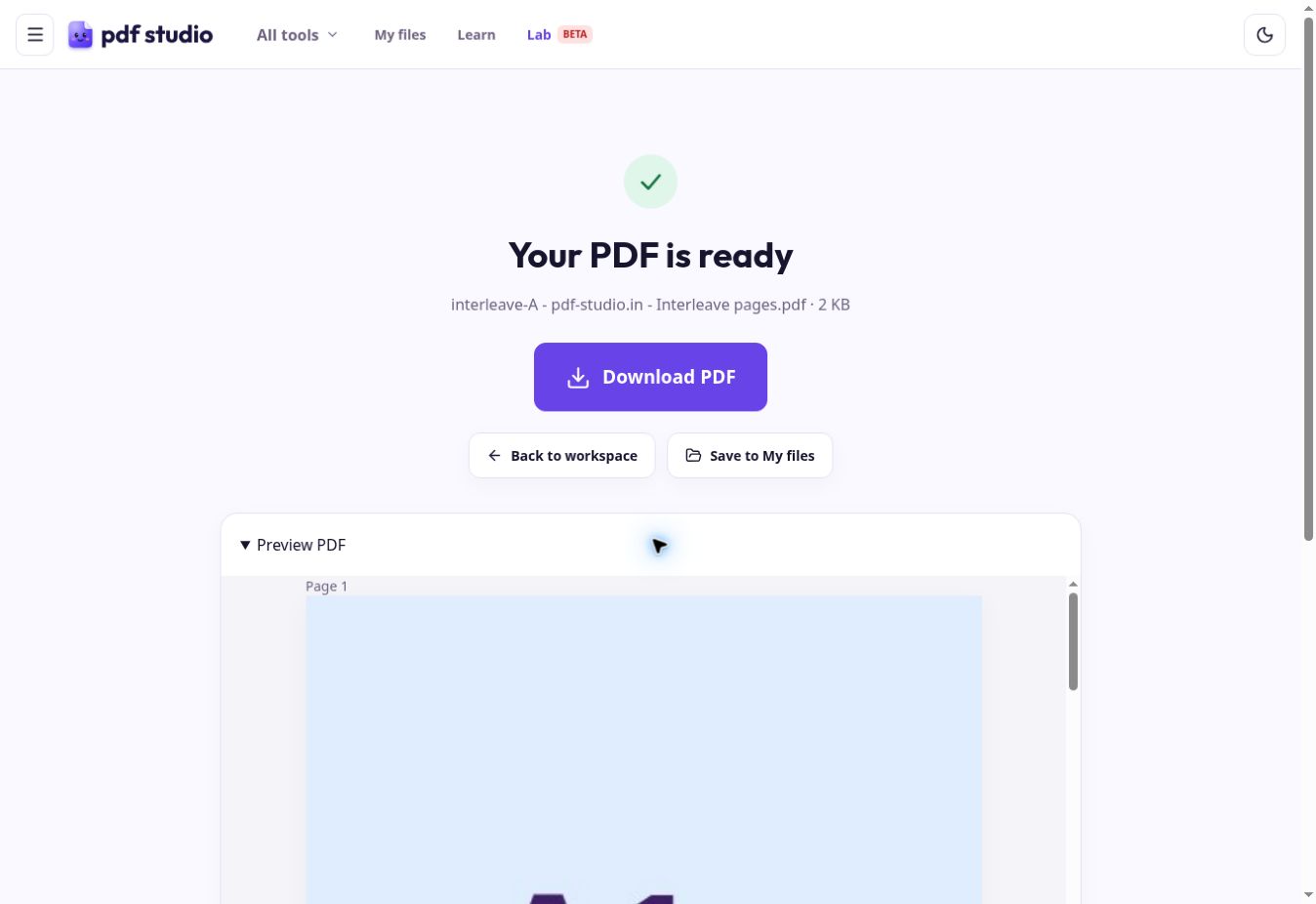
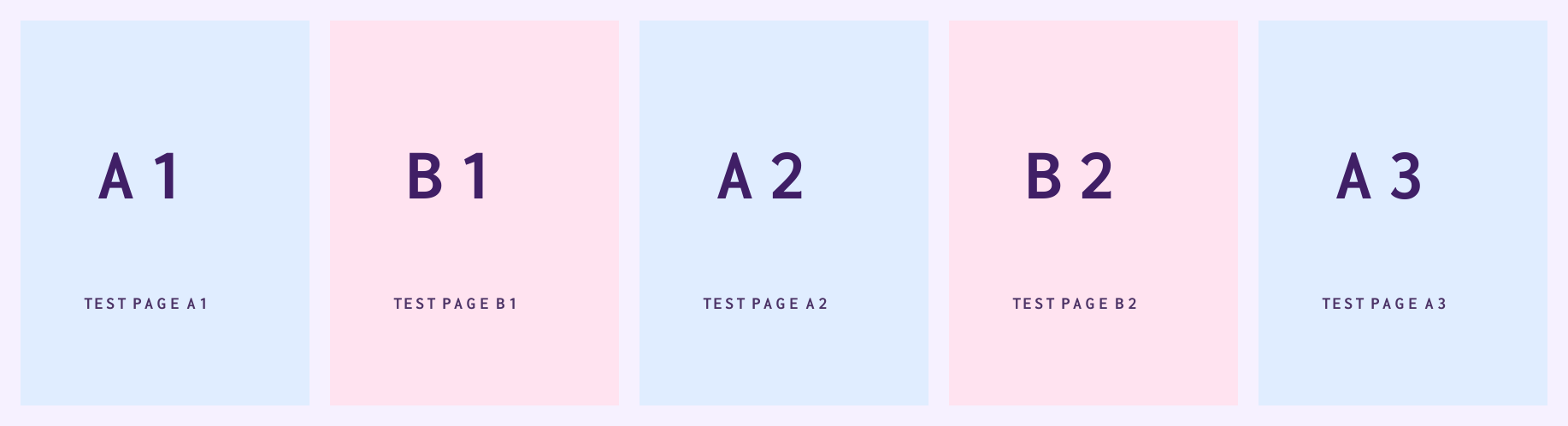
Try PDF A (3 pages) · Try PDF B (2 pages) · Inspect the tested output (5 pages)
A few things to check
Correct first page
Confirm the document that should start is first.
No missing pages
The output count should equal the sum of both input counts.
Correct sequence
Check the first, middle and last pairs, including leftover pages.
Tips for a smoother mix
- Try two short, labelled PDFs before mixing a long batch.
- Back pages reversed? Open Reverse pages with the back PDF alone, reverse its order and download it. Return here, choose the front PDF first, then add the reversed back PDF. Rotating pages changes their orientation, not their sequence.
- Wrong document first? Keep your source files, click Clear workspace, then use Choose files for the correct first PDF and Add PDFs for the second. Moving an individual page does not change which file goes first.
- Use Merge PDFs when you want complete documents placed one after another.
This tool does not match pages automatically, correct scan direction or recognize scanned text. Prepare each source sequence first.
Questions
Which PDF goes first?
The first file you add starts the output. Choose that PDF alone, then use Add PDFs for the next file.
Can I mix front and back scans?
Yes. Add fronts first and backs second, after checking that each stack is in matching order. Test a few labelled pages before processing the full scan.
What if back pages are reversed?
Use Reverse pages on the back PDF first and download that result. Add that corrected PDF second here. Rotation does not reverse page order.
What happens when one PDF is longer?
The tool keeps taking available pages in turn. Pages left in the longer PDF continue at the end; three A pages and two B pages produce five output pages.
Can I add more than two PDFs?
The tool accepts multiple PDFs. Its processing engine was checked with three files: A1, B1, C1, A2, B2, C2, A3. The live browser test shown above covers two files. Add sources individually in the desired file order and inspect your output.