

Start with the right sequence
Interleave means weaving pages from separate PDFs together, one page from each file in turn. Alternate & Mix PDF uses the order of your input files and their pages.
- 1
Check the front PDF and back PDF separately. Confirm which back belongs to the first front before combining anything.
- 2
If the back stack runs backwards, use Reverse pages on that PDF and download the corrected copy. Keep the original scan.
- 3
Open Alternate & Mix PDF. Click Choose files for the fronts first, then Add PDFs for the corrected backs. Click Alternate & Mix PDF and review the output before Download PDF.
Start with the paper, not the merge button
A scanner without automatic two-sided scanning often leaves you with two files: all the fronts and all the backs. Putting those files together with a normal merge produces every front first, followed by every back. Alternate & Mix PDF takes a page from each file in turn, so the two stacks can become a single document in reading order.
Before scanning a long stack, try two sheets marked Front 1, Back 1, Front 2 and Back 2. Scan them using the same feeding and flipping method you intend to use for the real document. Scanner output order depends on that method; do not assume the back file will start with Back 1.
Check whether the back stack is reversed
Open both input PDFs. If the fronts read F1, F2, F3 and the backs read B3, B2, B1, the back stack needs reversing. Otherwise the first pair would become F1, B3, which is the wrong sheet even though the output page count is correct.
Use Reverse pages on the back PDF alone and download it. Confirm the corrected sequence is B1, B2, B3 before adding it to the mix. A sideways page needs rotation; a backwards stack needs reversal. These are different problems, and fixing one does not fix the other.
Decide what to do with blank backs
Keep blank back pages when they represent real sheets in a front/back scan. Removing B2 from the back file makes the next back shift forward, so F2 may be paired with B3. Finish combining the two stacks before deciding whether a blank page should be removed from the final reading copy.
If a back page was never scanned, do not treat the shorter file as harmless. Interleaving keeps remaining pages at the end, but it cannot know which scan is missing. Restore the missing scan or a deliberate placeholder in the correct source position, then check every pair.
Review a few pairs before accepting the result
The source files should be added one at a time: fronts first, corrected backs second. After processing, inspect the first pair, a pair in the middle and the final pair. For important documents, check every pair rather than relying on a small spot check.
Two six-page inputs should produce twelve pages. A correct count catches missing or duplicated pages, but it does not establish correct pairing. Use page headings, sheet numbers, signatures or other recognizable content to confirm the relationship between each front and back. Keep both original scans until you have checked the downloaded PDF.
Check your result
For a three-sheet document, verify F1, B1, F2, B2, F3, B3. Read each front/back pair and compare the output count with the total input pages.
This combines existing pages. It cannot identify matching sides, recover a missing scan, straighten skewed text or recognize handwriting automatically.
A real five-page test
Tested Browser: Chrome (cloud desktop)
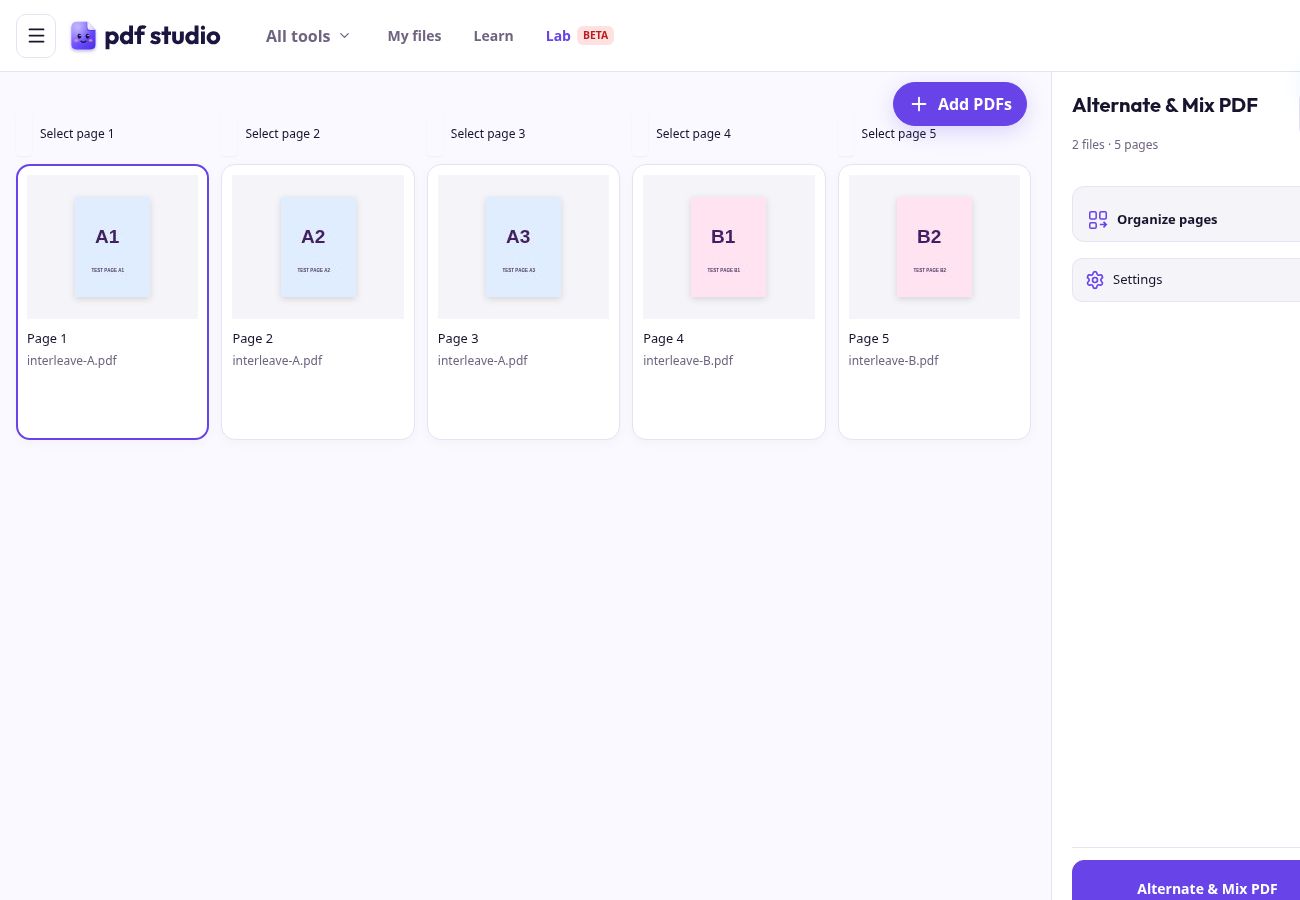
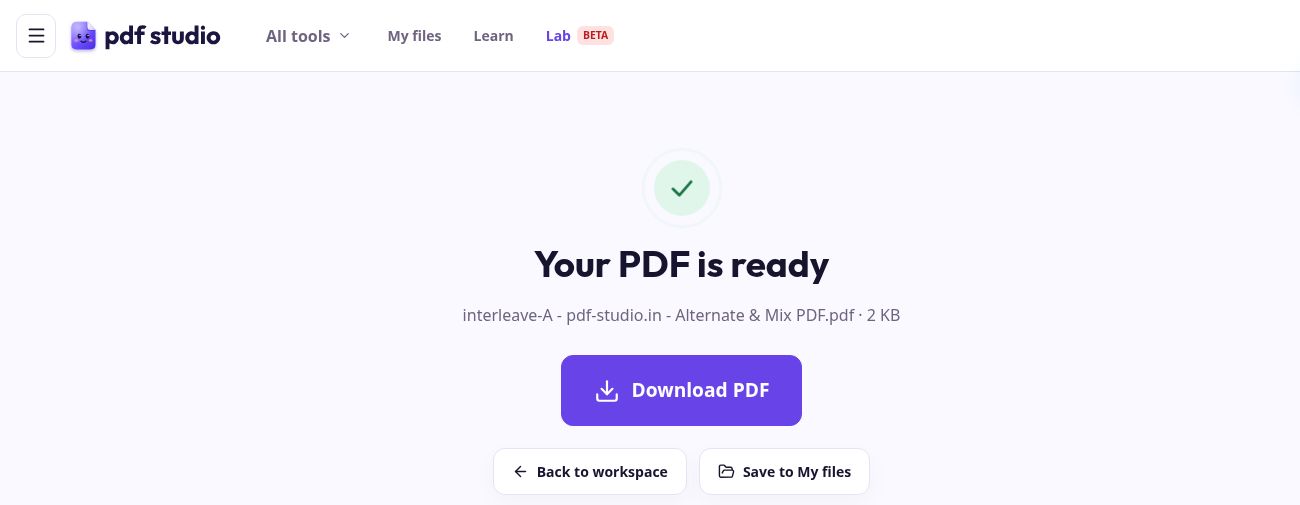
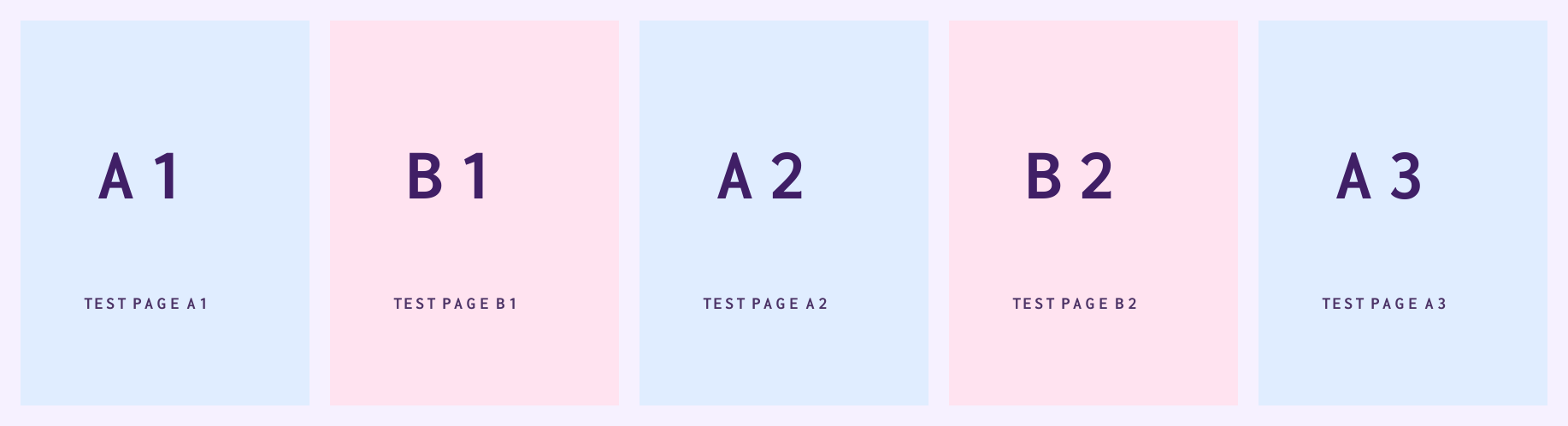
In the reference processing run on 7 October, we uploaded a three-page PDF labelled A1, A2, A3 and a two-page PDF labelled B1, B2. The live tool’s downloaded PDF contained A1 → B1 → A2 → B2 → A3. These captures verify basic two-file alternation. They do not verify a new front/back scanning or reversal workflow.
Open Alternate & Mix PDF — try it →
Watch the pages alternate
Try it yourself: arrange five sample pages
Can you make the alternating sequence?
This is a practice puzzle with sample cards. It does not upload, change or create a PDF.
Drag a card to its new position. On phones, tap a card, then tap its destination. With a keyboard, focus a card and use ← or →.
- 1
- 2
- 3
- 4
- 5
Buddy’s four-step story
Start with PDF A and PDF B. Keep each document’s pages in the order you want.
Put PDF A first if its first page should start the combined document.
Take A1, then B1, then A2, then B2, then A3. Continue with one page from each PDF.
Keep remaining pages at the end. Review the sequence and download your result.
Start with PDF A and PDF B. Keep each document’s pages in the order you want.
Practical tips
- Use a two-sheet trial to learn your scanner’s back-page order.
- Keep blank backs until the front/back sequence is complete.
- Download the reversed-back copy with a recognizable filename so you do not accidentally choose the original.
- Check the downloaded result in the PDF reader you normally use.
Questions
Should fronts or backs be added first?
Add the fronts first when the first reading page is a front. Choose that PDF alone, then add the backs. File order determines which stack starts each pair.
Does rotating a PDF reverse its pages?
No. Rotation changes page orientation. Reverse pages changes the order of the pages.
Can I use scanned PDFs without OCR?
Yes. Mixing pages does not require selectable text. OCR is a separate task if you want to search the scan.
What if one scan has fewer pages?
Remaining pages are retained, but a missing back in the middle can break pairing. Inspect the inputs and restore the missing position before mixing.