

How to set the preferred reading layout of a PDF
Choose single-page or two-column viewing. Learn the available controls, a practical example and what to check.
Open Reading layout preference →Follow these steps
- Choose the supported source file or files from your device.
- Choose the available single-page or two-column reader preference.
- Export and open the PDF in your preferred reader.
What this tool actually does
A viewing preference is a hint stored in the PDF. It does not physically place two pages on one sheet and cannot force every browser or mobile reader to honour it.
Choose the controls for your document
Choose single-page or two-column layout directly in the tool. For an actual printable two-up sheet, use Pages per sheet instead.
Before your first export
For a booklet, test the requested preference in the recipient’s usual reader. Some readers ignore document layout preferences or substitute their own setting; retain a sensible single-page document order.
The exported file still opens as one page
The receiving reader may ignore PageLayout. Check its own view settings; identical page content is expected because the tool changes preference rather than geometry.
A checked example you can try
PDF catalog requests TwoColumnLeft viewing.
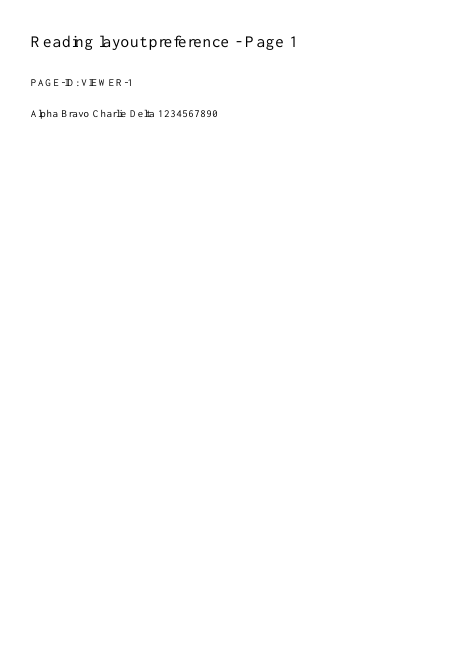
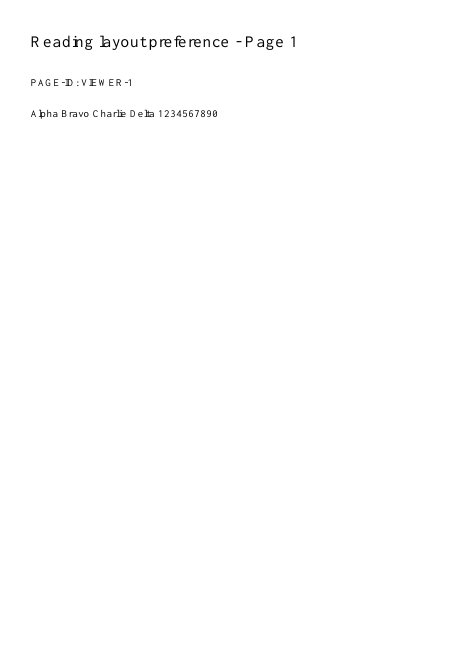
Settings used in this engine check
- quality
- compact
- angle
- 90
- margin
- 20
- start
- 1
- columns
- 2
Check the result
This sets a viewer preference, not a permanent redesign. Readers may ignore it.
Keep the original. When this task produces a file, reopen the download in the application where you will use it and inspect the affected pages. An illustration explains the operation; it is not a recorded processing test.
Practical tips
- Choose single-page or two-column layout directly in the tool. For an actual printable two-up sheet, use Pages per sheet instead.
- The receiving reader may ignore PageLayout. Check its own view settings; identical page content is expected because the tool changes preference rather than geometry.
- Print layout is a different decision. Use a print dialog with multiple pages per sheet or create a new n-up PDF.
Questions
The exported file still opens as one page?
The receiving reader may ignore PageLayout. Check its own view settings; identical page content is expected because the tool changes preference rather than geometry.
Printing still uses one page per sheet?
Print layout is a different decision. Use a print dialog with multiple pages per sheet or create a new n-up PDF.
What is this tool useful for?
Set a preferred reading layout for a document.
What should I check in the result?
This sets a viewer preference, not a permanent redesign. Readers may ignore it.