

How to remove PDF comments and annotations
Remove comments, highlights, links and stamps. Learn the available controls, a practical example and what to check.
Open Remove annotations →Follow these steps
- Choose the supported source file or files from your device.
- Use the original single PDF before making other workspace changes.
- Export the cleaned copy and inspect comments, stamps, highlights and links.
What this tool actually does
Annotations can exist separately from the main page drawing. Once an annotation has been flattened into page graphics, an annotation-removal operation cannot identify it as a removable comment.
Choose the controls for your document
Use the original single PDF before other workspace edits. Inspect the comments panel and several annotated pages after export; preserve the review original for reference.
Before your first export
For a reviewed draft, decide whether comments and highlights are part of the record you must retain. Save the reviewed original separately before making a clean reading copy.
A highlight remains visible
It may already be part of page content. Do not assume the tool failed simply because coloured pixels remain; check whether a live annotation is still present.
A checked example you can try
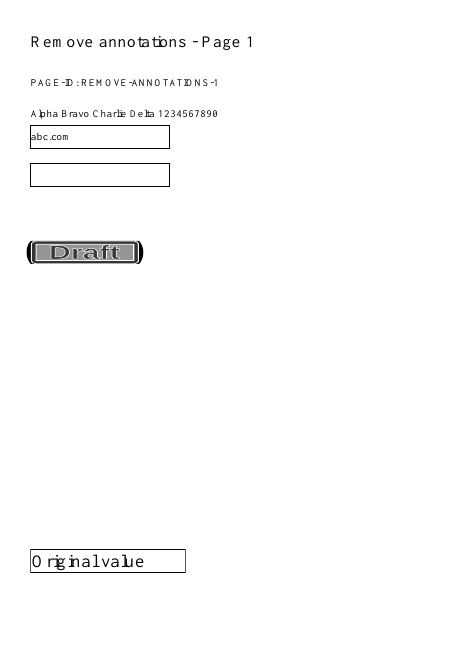
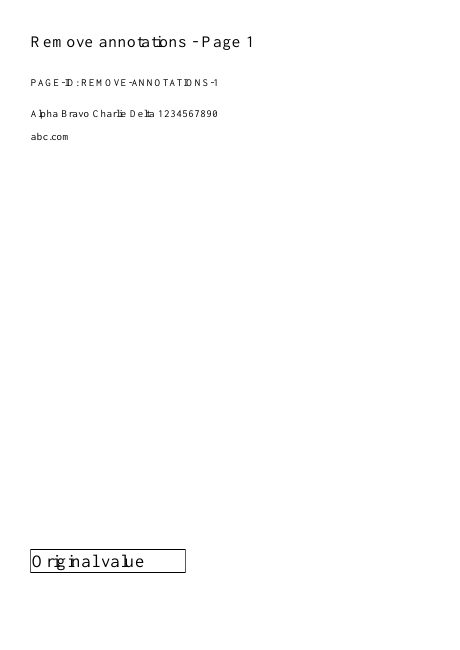
Non-form annotations removed; Name field value retained.
Settings used in this engine check
- quality
- compact
- angle
- 90
- margin
- 20
- start
- 1
- columns
- 2
Check the result
Form widgets are preserved. Graphics already flattened into page content cannot be removed as annotations.
Keep the original. When this task produces a file, reopen the download in the application where you will use it and inspect the affected pages. An illustration explains the operation; it is not a recorded processing test.
Practical tips
- Use the original single PDF before other workspace edits. Inspect the comments panel and several annotated pages after export; preserve the review original for reference.
- It may already be part of page content. Do not assume the tool failed simply because coloured pixels remain; check whether a live annotation is still present.
- Form widgets are intentionally kept. Fill or flatten them separately if you need a static reading copy.
Questions
A highlight remains visible?
It may already be part of page content. Do not assume the tool failed simply because coloured pixels remain; check whether a live annotation is still present.
A fillable box remains?
Form widgets are intentionally kept. Fill or flatten them separately if you need a static reading copy.
What is this tool useful for?
Prepare a copy without non-form annotations.
What should I check in the result?
Form widgets are preserved. Graphics already flattened into page content cannot be removed as annotations.