

How to fill PDF form fields
Complete existing fillable fields. Learn the available controls, a practical example and what to check.
Open Fill PDF forms →Follow these steps
- Open the original PDF containing fillable fields.
- Complete supported text fields, checkboxes and dropdowns. Review all fields before export.
- Choose an editable or flattened output, then reopen it and confirm the saved values.
What this tool actually does
Interactive fields are objects in the PDF. A scanned or static form that only looks like boxes has no field controls for this tool to fill.
Choose the controls for your document
Start with the original form and check supported field types. Save an editable copy before flattening if you expect to revise a value later.
Before your first export
For a registration form, fill a short test with deliberately long values. Save and reopen it in the intended reader. Pay special attention to checkboxes and multiline fields rather than checking only the first text box.
No fillable fields are detected
The source may be a scan or static artwork. Use Add text for a visual fill-in, or obtain a genuine interactive version from the issuer.
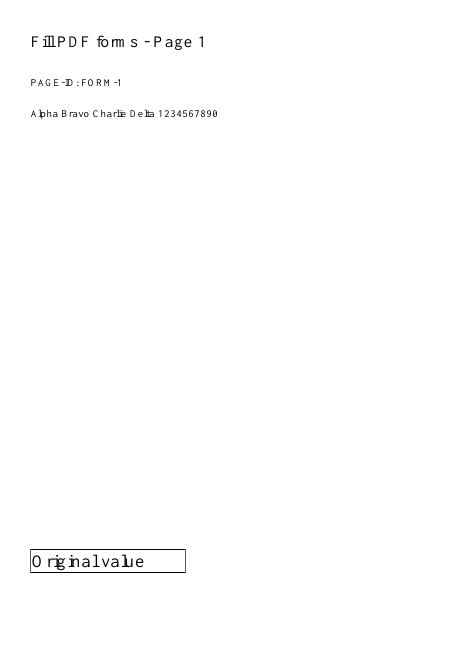
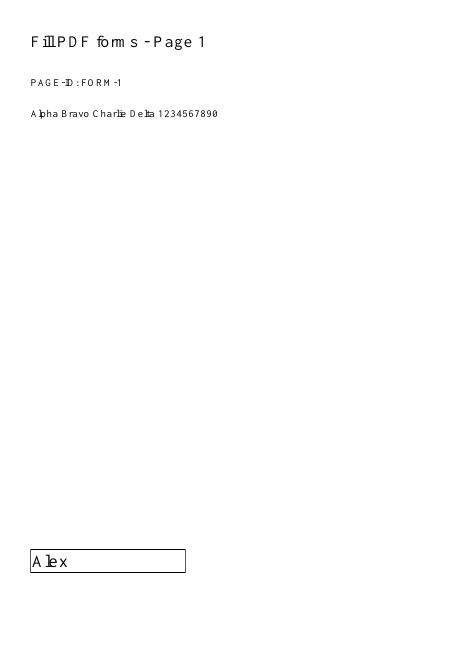
A checked example you can try
Name field contains Alex after reopening.
Settings used in this engine check
- quality
- compact
- angle
- 90
- margin
- 20
- start
- 1
- columns
- 2
- fields
- {"Name":"Alex"}
Check the result
Unsupported form types may not work. Flattening makes the completed values static, so keep an editable copy if you will need to revise them.
Keep the original. When this task produces a file, reopen the download in the application where you will use it and inspect the affected pages. An illustration explains the operation; it is not a recorded processing test.
Practical tips
- Start with the original form and check supported field types. Save an editable copy before flattening if you expect to revise a value later.
- The source may be a scan or static artwork. Use Add text for a visual fill-in, or obtain a genuine interactive version from the issuer.
- Reopen the downloaded PDF and check both visible appearance and field value. Some readers cache form appearances; verify using the actual exported copy.
Questions
No fillable fields are detected?
The source may be a scan or static artwork. Use Add text for a visual fill-in, or obtain a genuine interactive version from the issuer.
The value looks correct but is not saved?
Reopen the downloaded PDF and check both visible appearance and field value. Some readers cache form appearances; verify using the actual exported copy.
Why are there no fields?
The PDF may be a scan or a static form without interactive fields.
What does flatten mean?
Flattening makes field values part of the page appearance rather than editable form controls.