

How to add PDF headers and footers
Add a label to every page. Learn the available controls, a practical example and what to check.
Open Headers & footers →Follow these steps
- Choose the supported source file or files from your device.
- Enter the header or footer label in the available controls.
- Export and inspect margins on every page orientation.
What this tool actually does
Headers and footers add new text to the page. Dynamic placeholders use current PDF positions and totals; they do not infer chapter numbers printed in the source.
Choose the controls for your document
Use left, centre or right slots and the supported {page}, {total} and {date} tokens. Keep font size and inset suitable for the source margins.
Before your first export
For a committee pack, use short running labels and leave space around the body text. Compare the longest header with the narrowest page; one clean page is not enough to prove the whole pack fits.
A placeholder prints literally
Check the exact supported token spelling and braces. Unsupported placeholders are not a template language.
A checked example you can try
Requested label is present in extracted output text.
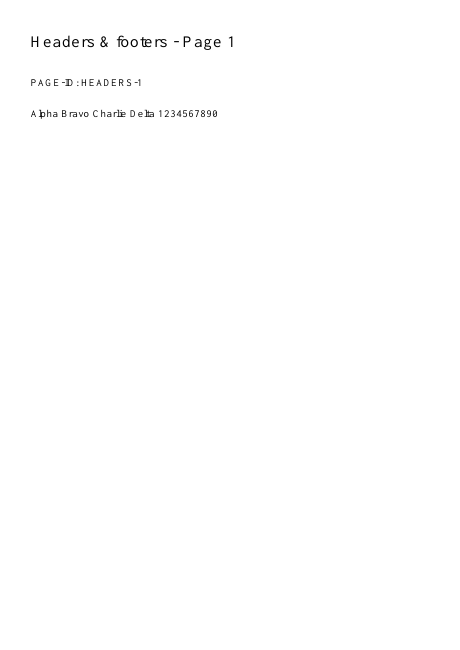
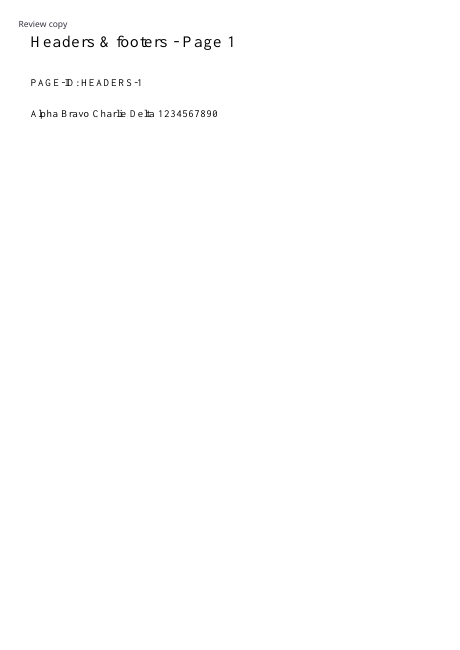
Settings used in this engine check
- text
- Review copy
- quality
- compact
- angle
- 90
- margin
- 20
- start
- 1
- columns
- 2
Check the result
Labels may overlap content near page edges. Reopen the output before sharing.
Keep the original. When this task produces a file, reopen the download in the application where you will use it and inspect the affected pages. An illustration explains the operation; it is not a recorded processing test.
Practical tips
- Use left, centre or right slots and the supported {page}, {total} and {date} tokens. Keep font size and inset suitable for the source margins.
- Check the exact supported token spelling and braces. Unsupported placeholders are not a template language.
- Increase usable margins or move the label to another slot. Adding a footer does not automatically reflow the original page away from it.
Questions
A placeholder prints literally?
Check the exact supported token spelling and braces. Unsupported placeholders are not a template language.
The new label overlaps content?
Increase usable margins or move the label to another slot. Adding a footer does not automatically reflow the original page away from it.
What is this tool useful for?
Label a document with a repeating title or reference.
What should I check in the result?
Labels may overlap content near page edges. Reopen the output before sharing.