

Flatten PDF: common problems and how to fix them
Resolve a comment remains after form flattening and a filled value disappears. Understand the limits before retrying.
Open Flatten PDF →Follow these steps
- Choose the supported source file or files from your device.
- Review whether you still need selectable text, links or interactive forms.
- Choose form-field mode to retain text, or image mode to flatten the entire appearance.
A comment remains after form flattening
Form flattening targets fields, not every annotation. Use the appropriate annotation cleanup or whole-page mode only when that is the intended result.
A filled value disappears
Preserve the original and review the form in its original editor. Unsupported or overlapping field appearances may require a different safe flattening path.
Check whether this is the right operation
The current tool distinguishes making form fields read-only from rebuilding the entire visible page as an image. Those choices preserve different features.
A more useful retry
For a completed form, check every visible answer before flattening. Keep the editable original separately. A read-only reading copy is useful for sharing, but it prevents the recipient from correcting fields in the normal form interface.
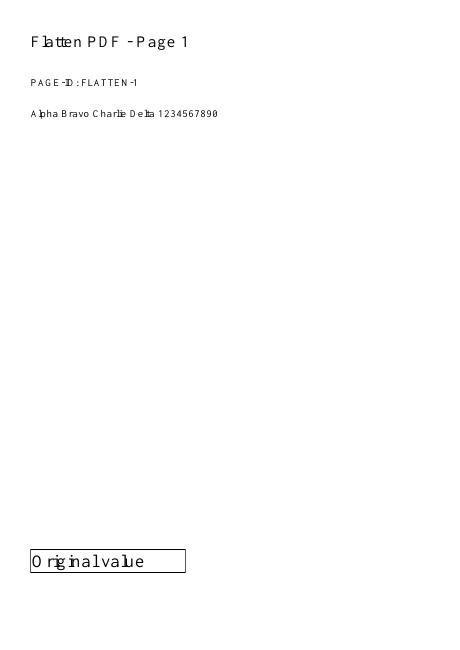
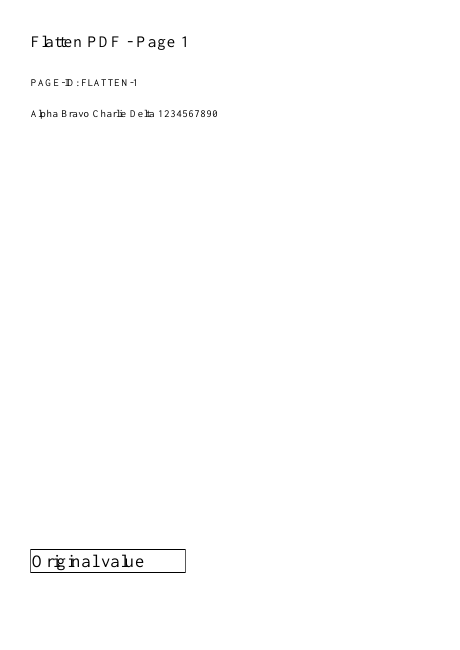
A checked example you can try
Field values remain as text; editable fields are absent.
Settings used in this engine check
- quality
- compact
- angle
- 90
- margin
- 20
- start
- 1
- columns
- 2
Check the result
Form-field mode preserves selectable text and makes form fields read-only. Image mode removes searchable text, links and editable forms, and may enlarge the file.
Keep the original. When this task produces a file, reopen the download in the application where you will use it and inspect the affected pages. An illustration explains the operation; it is not a recorded processing test.
Practical tips
- For form mode, inspect saved field appearances and selectable body text. For image mode, expect loss of text selection, links and editable fields, and inspect every page.
- Form flattening targets fields, not every annotation. Use the appropriate annotation cleanup or whole-page mode only when that is the intended result.
- Preserve the original and review the form in its original editor. Unsupported or overlapping field appearances may require a different safe flattening path.
Questions
A comment remains after form flattening?
Form flattening targets fields, not every annotation. Use the appropriate annotation cleanup or whole-page mode only when that is the intended result.
A filled value disappears?
Preserve the original and review the form in its original editor. Unsupported or overlapping field appearances may require a different safe flattening path.
What is this tool useful for?
Make filled form fields read-only or create static image pages.
What should I check in the result?
Form-field mode preserves selectable text and makes form fields read-only. Image mode removes searchable text, links and editable forms, and may enlarge the file.