

Remove an outdated reader outline from a report
A revised report still opens an outline with obsolete chapter labels.
Open Remove bookmarks →Follow these steps
- Open the original single PDF.
- Export a copy without its navigation outline.
- Reopen the PDF and check page content and reader navigation.
The document and the intended outcome
A revised report still opens an outline with obsolete chapter labels. Remove bookmarks from the original single PDF and reopen the copy to confirm the outline is gone.
Make this example work for your file
For a renamed report, remove an obsolete outline only after deciding whether to replace it with useful navigation. A reader without bookmarks may be harder to browse even when every visible page is unchanged.
Choose only the settings this case needs
Use the unchanged source PDF for this operation. If you already edited pages in another tool, export those changes first and open that result as the new source.
When the example needs a different approach
Page links are different objects. Use Remove PDF links if that is the intended task, and inspect the result independently.
A checked example you can try
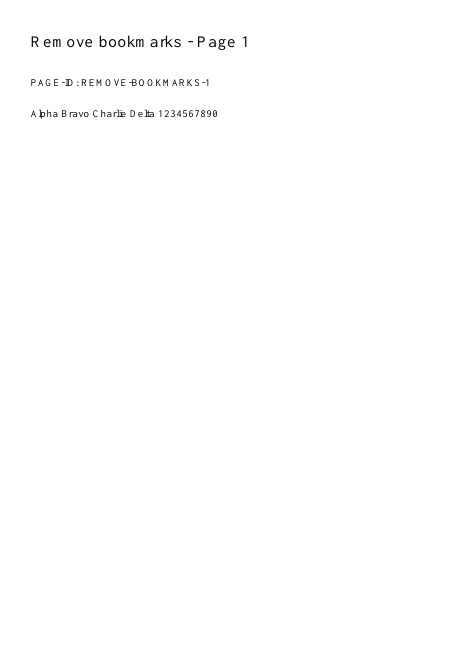
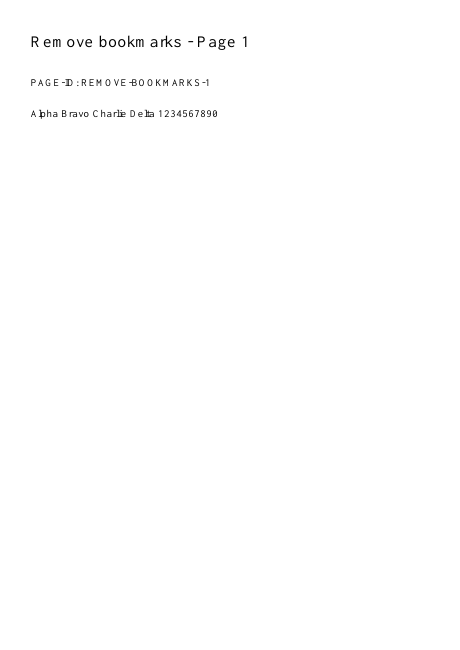
The document outline is absent.
Settings used in this engine check
- quality
- compact
- angle
- 90
- margin
- 20
- start
- 1
- columns
- 2
Check the result
Removes bookmarks only. Page links and visible content remain; export existing workspace changes first.
Keep the original. When this task produces a file, reopen the download in the application where you will use it and inspect the affected pages. An illustration explains the operation; it is not a recorded processing test.
Practical tips
- Use the unchanged source PDF for this operation. If you already edited pages in another tool, export those changes first and open that result as the new source.
- That page is ordinary visible content. Remove it with Organize if appropriate; bookmark removal does not erase words printed on a page.
- Page links are different objects. Use Remove PDF links if that is the intended task, and inspect the result independently.
Questions
The printed contents page remains?
That page is ordinary visible content. Remove it with Organize if appropriate; bookmark removal does not erase words printed on a page.
Links are still clickable?
Page links are different objects. Use Remove PDF links if that is the intended task, and inspect the result independently.