

How to add bookmarks to a PDF
Create a clickable document outline. Learn the available controls, a practical example and what to check.
Open Add bookmarks →Follow these steps
- Choose the supported source file or files from your device.
- Enter one page number and bookmark title per line, using positions in the file.
- Preview the page references, then export a PDF with a new outline.
What this tool actually does
Bookmarks point to actual PDF positions. They do not insert a printed contents page, renumber the document or detect headings automatically.
Choose the controls for your document
Enter a valid page position and title for each bookmark. Keep titles short enough to scan in a sidebar; export replaces the previous outline rather than merging two competing outlines.
Before your first export
For the review pack, use a small set of descriptive chapter titles. Match each entry to the PDF position after the cover and contents pages, then click every entry in the exported outline.
A bookmark opens the wrong section
Compare the destination with the PDF position, not a printed page number that may start after a cover. Update the entry and check it again after export.
A checked example you can try
A document outline was added.
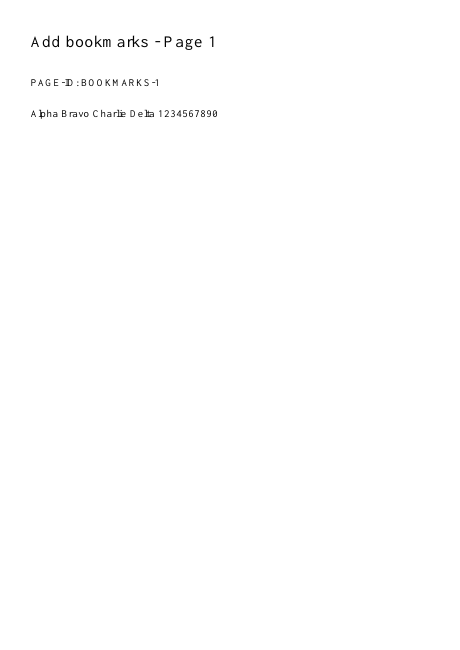
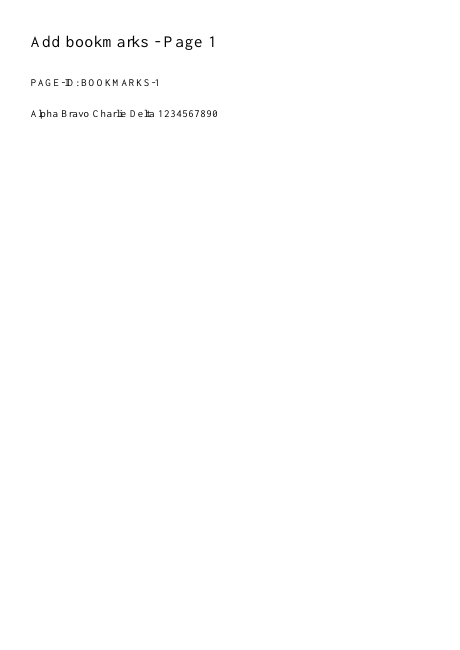
Settings used in this engine check
- text
- 1 Alpha 4 Delta
- quality
- compact
- angle
- 90
- margin
- 20
- start
- 1
- columns
- 2
Check the result
Existing outline entries are replaced. Check bookmark destinations in a reader that displays PDF outlines.
Keep the original. When this task produces a file, reopen the download in the application where you will use it and inspect the affected pages. An illustration explains the operation; it is not a recorded processing test.
Practical tips
- Enter a valid page position and title for each bookmark. Keep titles short enough to scan in a sidebar; export replaces the previous outline rather than merging two competing outlines.
- Compare the destination with the PDF position, not a printed page number that may start after a cover. Update the entry and check it again after export.
- Use a page number within the document and a nonempty title. Start with one simple entry to isolate a formatting problem.
Questions
A bookmark opens the wrong section?
Compare the destination with the PDF position, not a printed page number that may start after a cover. Update the entry and check it again after export.
An entry is rejected?
Use a page number within the document and a nonempty title. Start with one simple entry to isolate a formatting problem.
What is this tool useful for?
Navigate reports or chapters without scrolling through every page.
What should I check in the result?
Existing outline entries are replaced. Check bookmark destinations in a reader that displays PDF outlines.