

PDF map troubleshooting: wrong section links and form fields
Check main-document page positions, reorder safely and prepare forms before creating a linked reading pack.
Open PDF Attachment Map →Follow these steps
- Add a main PDF first, then supporting PDFs. The first file is the main document.
- For each support, enter a section description and a page position in the main PDF. Use the move controls to arrange the pack.
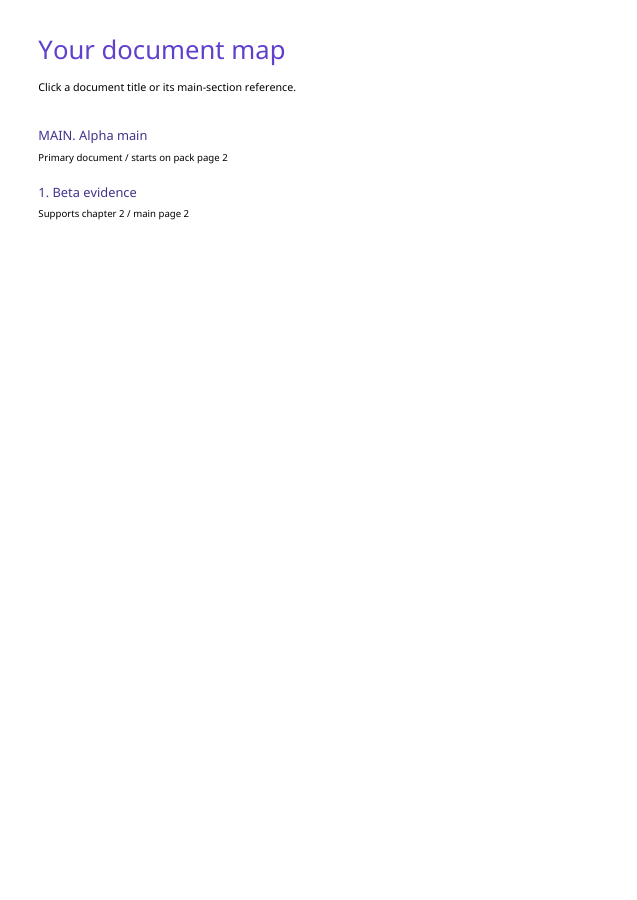
- Press Create mapped PDF and Download PDF. Click the index document titles and main-section references to check their destinations.
Use file positions, not printed labels
A PDF may contain a cover and contents before its printed page 1. The section field expects the actual one-based position in the first PDF. Open that source, count from its first page, and use the correct position. A page outside the main PDF is rejected rather than linked to an unrelated output page.
Preserve the originals for interactive work
Copying pages into a reading pack is not a reliable way to preserve editable form fields or digital signatures. This tool refuses unflattened form fields. Complete and flatten forms in a separate copy, inspect their values and add that copy. Keep separately signed or editable originals when they are required.
Keep your workflow focused
Upload only the documents required for this task. Files are processed in this browser, and the original documents are not overwritten. Download the result before closing the tab. These dedicated workspaces do not automatically import unsaved changes from another PDF Studio tool.
If a document is protected, use Remove password with a password you know before opening it here. Large or complex pages can require substantial memory. The workspace accepts PDFs under 50 MB each, at most 12 files, and bounded page counts; split an unusually large document first.
A checked example you can try
Six Alpha pages plus one Beta page produced eight pages including the index. All three internal link destinations were checked.
Settings used in this engine check
- layout
- attachment-map
PDF Attachment Map, in four moments
Main and support
Add a main PDF first, then supporting PDFs. The first file is the main document.
An illustrated walkthrough, not a processing test. Reduced motion is on; choose each moment manually.
Check the result
Reopen the downloaded PDF. Check page count, readable content and every clickable index destination.
Keep the original. When this task produces a file, reopen the download in the application where you will use it and inspect the affected pages. An illustration explains the operation; it is not a recorded processing test.
Practical tips
- Keep the originals and use a descriptive filename for the exported copy.
- Copying pages into a reading pack is not a reliable way to preserve editable form fields or digital signatures. This tool refuses unflattened form fields. Complete and flatten forms in a separate copy, inspect their values and add that copy. Keep separately signed or editable originals when they are required.
Questions
Will my original files change?
No. Download a separate result. The source files remain unchanged.
Do the files leave my device?
No document upload is used. PDF processing runs in your browser.
What should I check before sharing?
This is a combined reading copy, not embedded file attachments. Fill and flatten forms before using it. Original signatures, outlines and embedded attachments are not preserved; keep all original files.