

PDF clipping troubleshooting: cut-off text and blurry output
Adjust the selection, keep table headings and understand the image quality limit before exporting your collection.
Open PDF Cut & Collect →Follow these steps
- Open one or more PDFs with Add PDFs. Choose a document and page.
- Drag across the preview to select a region, or set Left, Top, Width and Height percentages. Add an optional caption and press Collect selection.
- Repeat on other pages. Move or remove clippings, press Create collection PDF, then Download PDF.
Check all four edges
If a line or chart label is missing, enlarge the selection before pressing Collect selection. Percentage fields provide an alternative to touch dragging. Removing a bad clipping and collecting it again is safer than keeping an incomplete excerpt.
Understand the rendering limit
The workspace renders a page preview at a bounded resolution to manage browser memory. A very small region from a large page may not contain enough pixels for enlargement. Choose a larger region or keep the source PDF alongside the collection. This feature does not reconstruct editable tables.
Keep your workflow focused
Upload only the documents required for this task. Files are processed in this browser, and the original documents are not overwritten. Download the result before closing the tab. These dedicated workspaces do not automatically import unsaved changes from another PDF Studio tool.
If a document is protected, use Remove password with a password you know before opening it here. Large or complex pages can require substantial memory. The workspace accepts PDFs under 50 MB each, at most 12 files, and bounded page counts; split an unusually large document first.
A checked example you can try
One clipping, one output page, with the Alpha filename and source page 1 in the footer.
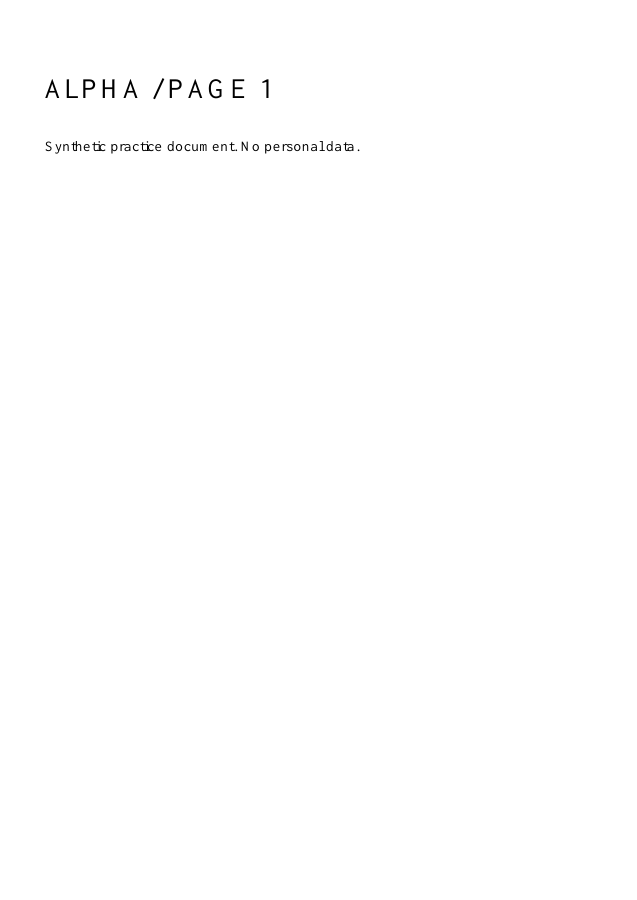
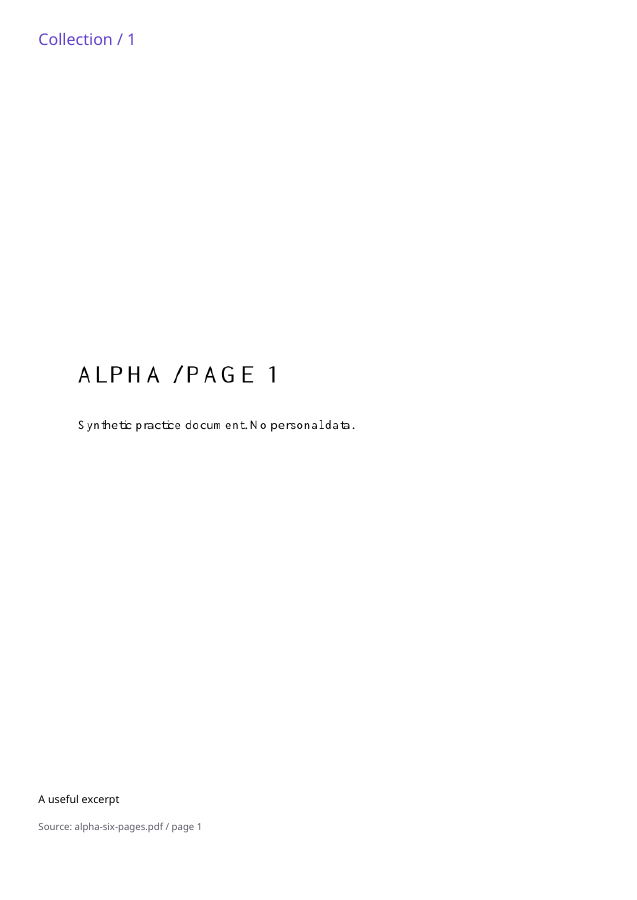
Settings used in this engine check
- layout
- cut-collect
PDF Cut & Collect, in four moments
Open your sources
Open one or more PDFs with Add PDFs. Choose a document and page.
An illustrated walkthrough, not a processing test. Reduced motion is on; choose each moment manually.
Check the result
Reopen the downloaded PDF. Check page count, readable content and the source filename and page beneath every clipping.
Keep the original. When this task produces a file, reopen the download in the application where you will use it and inspect the affected pages. An illustration explains the operation; it is not a recorded processing test.
Practical tips
- Keep the originals and use a descriptive filename for the exported copy.
- The workspace renders a page preview at a bounded resolution to manage browser memory. A very small region from a large page may not contain enough pixels for enlargement. Choose a larger region or keep the source PDF alongside the collection. This feature does not reconstruct editable tables.
Questions
Will my original files change?
No. Download a separate result. The source files remain unchanged.
Do the files leave my device?
No document upload is used. PDF processing runs in your browser.
What should I check before sharing?
Clippings are images. They do not retain selectable text, links or the structure of a source table. Collection is not redaction; your originals remain unchanged.